How to describe motion when animating a photo
For image-to-video, your photo supplies the starting scene. Use the prompt to explain what should move and how the camera should behave. Begin with one main action, then review the resulting clip before adding complexity.
A useful starting pattern is subject movement + camera direction + details to retain. You do not have to describe every object that is already visible in the photo. GO AI video generation takes place in the app for iPhone, iPad and Mac.
A photo, a movement request and a video
This existing GO AI demonstration starts with a still image and asks the person to turn and walk toward the camera. It shows one outcome for the task, not a comparison between models or a promise that every attempt will match it.
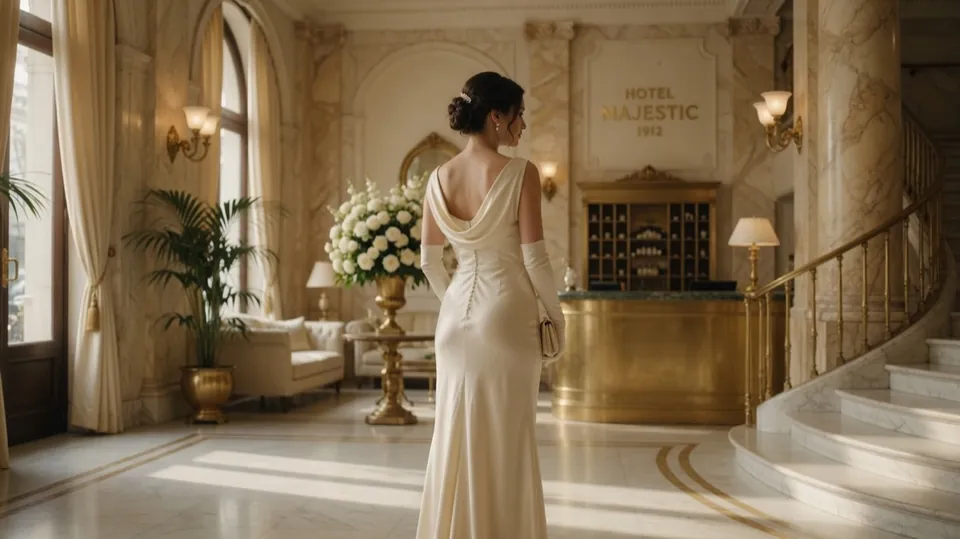
have her turn and walk toward the camera
Watch the face, body movement and background throughout the clip. A result can look convincing in its first frame and still change details later.
Build the prompt in three parts
- Choose the movement. Name a visible subject and an action that fits the photo. A small turn, drifting clouds or steam rising from a cup gives you a clear result to evaluate.
- Choose the camera. Ask for a static camera or one simple movement, such as a slow push-in. Start simply so you can distinguish camera movement from changes to the subject.
- Name important details. Tell the model which features matter, such as the face, product shape or background. These are instructions to aim for, not a guarantee that the details remain identical.
Open image-to-video in GO AI, add your photo, enter the prompt and check the settings offered by the selected tool. Duration, quality options and generation time can vary. Use the iPhone video guide for the broader workflow.
Plan one shot before generating
Replace the brackets with an action that fits your photo. Save the image, prompt and settings offered by the selected tool alongside the clip. This template is a suggestion, not a tested preset.
[Subject] moves [direction and speed]. The camera [stays still or makes one simple movement]. Keep [important visual details] consistent.
Prompt ideas for three types of photo
The following prompts are suggestions to adapt. The video above was not generated from these three suggestions.
A portrait
A gentle breeze moves the hair. Keep the face and background consistent. The camera stays still.
Check the eyes, mouth and hairline. If the face drifts, simplify the motion and compare a new result with the original photo.
A landscape
Clouds drift slowly over the mountains. The camera gently moves forward. Preserve the original light.
Look for bending horizons and changes to buildings, trees or other details that should stay stable.
A product photo
Slowly move the camera toward the product. Keep its shape, label and background unchanged.
Read the label and inspect the product outline frame by frame. Do not use a clip that changes details important to the product.
Fixing unwanted motion, warping and a drifting camera
Inspect the source image before changing the prompt: blurred edges or hands may become more noticeable in motion. For a drifting background, remove camera movement and request a small subject action. For warping, reduce rotation and overlapping actions. Retry from the original and inspect the beginning, middle and end. Prompt changes can help, but cannot guarantee a stable clip.
One continuous shot with a stationary camera. The person makes a small natural head movement. The background stays still and the framing remains unchanged.
- Preview the clip at the start, middle and end. Identify whether the problem is subject movement, camera movement or changing object details.
- For a drifting background, try a fixed camera and one small action. For a warped object, remove rotations and simultaneous actions before retrying.
- Use the same original image for the next attempt and change one instruction. Compare the clips to see whether that specific change helped.
When the result does not match the prompt
- Too much movement: reduce the requested action and try a static camera.
- The scene changes: remove instructions that introduce new objects or another setting.
- The subject distorts: return to a clearer starting photo and try subtler motion.
- One part is good: keep that instruction and change only the part that caused trouble.
Questions about image-to-video prompts
Is a longer prompt better?
Detail helps when it removes ambiguity. Extra actions or conflicting camera instructions can make a result harder to control and evaluate.
Will the same prompt always produce the same clip?
No. Generative results can vary. Keep the original image and compare each output before saving it.
Can I make the video on this page?
Create your video in the GO AI app. Add your photo, describe the motion and review the clip before saving it.