Add your photo
Open image editing in GO AI and choose a clear photo. Keep the original so you can compare it with the result.
GO AI Chat · iPhone · iPad · Mac
Start with your own photo and describe the change you want. Use image editing in the GO AI app on iPhone, iPad or Mac.
Download on the App StorePhoto editing is available in the app. The web app supports chat.
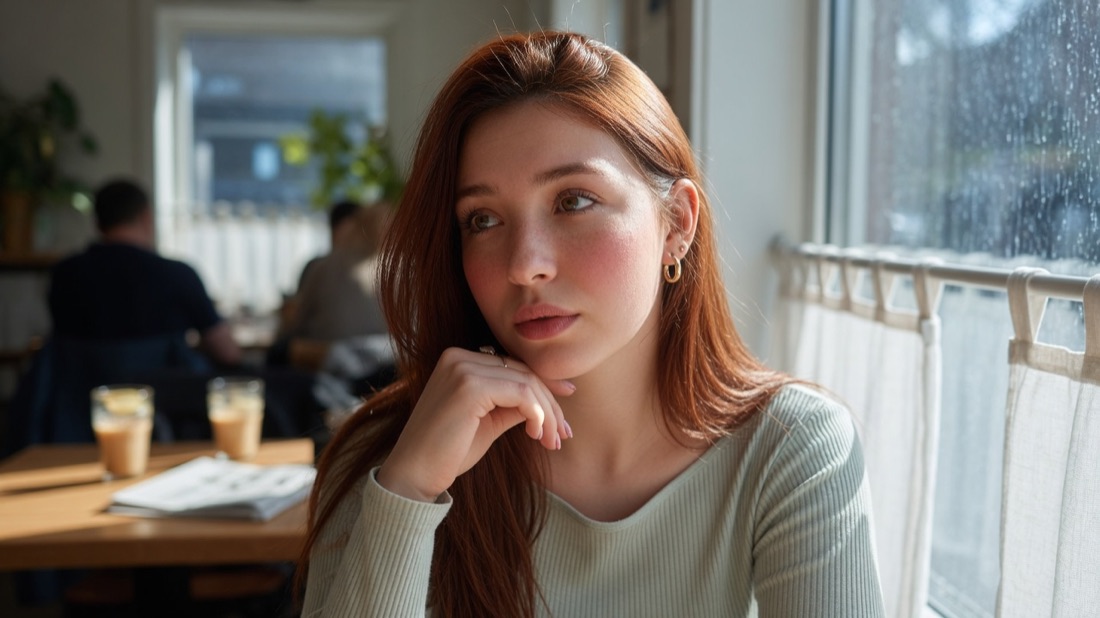

make her hair blonde
An existing GO AI Studio example. Compare the face, clothing and background as well as the hair. Your results may differ.
Open image editing in GO AI and choose a clear photo. Keep the original so you can compare it with the result.
Say what to change and which details should stay the same. Start with a specific request, such as changing hair color.
Compare the result with the original. Inspect small details before saving or sharing. Refine one instruction at a time.
Try a different hair color, describe a new background or adjust the lighting. These are ideas to explore; each result needs checking.
AI may also alter faces, edges, text or background details. A request to preserve them is an instruction, not a guarantee that every pixel stays unchanged.
To edit a photo, open GO AI on iPhone, iPad or Mac. This page explains the feature and shows an example.
Editing starts from a photo you provide. Image generation creates a new image from a description. Choose the task that matches what you want to make.
Generate movement within a still image in the app, rather than a slideshow.
Ask questions, draft text and explore ideas. Chat is also available on the web.
Learn how to edit a photo with a text prompt in GO AI. See a hair-color example, write clearer instructions, and check which details changed.
Start again from the original and ask for one change outside the face. Compare the eyes, nose, mouth, skin texture and hairline at full size. “Keep the face unchanged” is an instruction, not an identity lock. If the face changes, reject that result; repeating edits on it can carry the error forward.
Use a sharp photo of the actual item. Request a background or lighting change separately, then compare the label, logo, shape, color and texture with the original. A polished image is unusable for a listing if it misrepresents the item. If exact preservation is essential, use an editor with controlled selections rather than relying on a prompt alone.