Choose a photo
Open the video tools in GO AI and add your image. A clear subject gives you a simpler starting point.
GO AI Chat · iPhone · iPad · Mac
Start with a still image. Describe how it should move. Create a video in the GO AI app for iPhone, iPad and Mac.
Download on the App StoreVideo generation happens in the app. The web app supports chat.
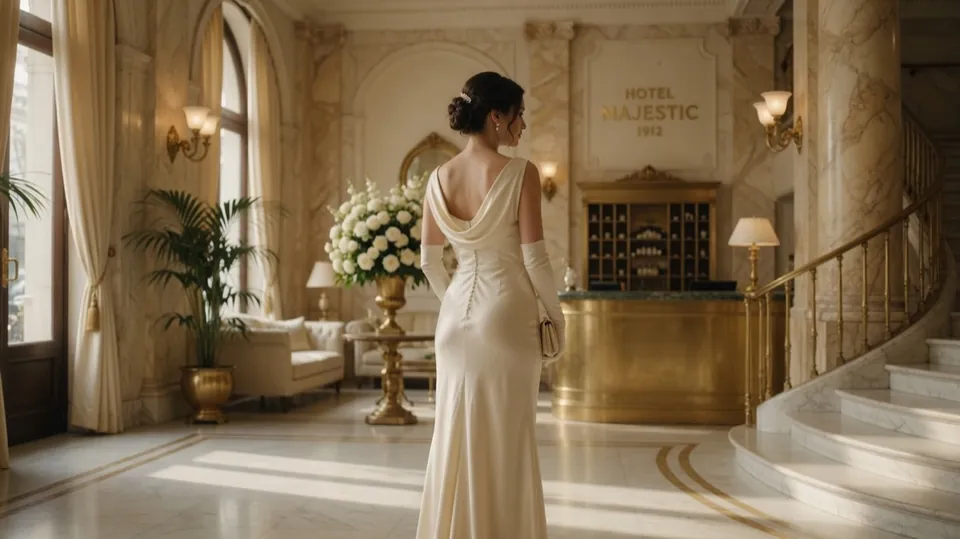
have her turn and walk toward the camera
Open the video tools in GO AI and add your image. A clear subject gives you a simpler starting point.
Ask for one action and one camera movement. Keep the scene close to the original photo.
Check the available settings in the app, generate your clip, then review it before saving or sharing.
Adapt these starting points to your own photo. They are suggestions, not demonstrations of generated results.
A gentle breeze moves the hair. Keep the face and background consistent. The camera stays still.
Clouds drift slowly over the mountains. The camera gently moves forward. Preserve the original light.
Slowly move the camera toward the product. Keep its shape, label and background unchanged.
AI can change faces, hands, lettering and fine details. Review those areas carefully. Start with subtle movement and adjust one instruction at a time.
Open GO AI on iPhone, iPad or Mac to generate video. This page explains the feature; it does not upload or process your photo.
Image-to-video generates movement within a picture. A slideshow arranges several still photos in sequence.
Check the options in the app for the selected video tool. Available settings and generation time can vary.
Change an existing photo with a text instruction in the app.
Ask questions, draft text and explore ideas. Chat is also available on the web.
Write image-to-video prompts with a clear action and camera direction. See a GO AI photo-to-video example and adapt portrait, landscape and product prompts.
Inspect the source image before changing the prompt: blurred edges or hands may become more noticeable in motion. For a drifting background, remove camera movement and request a small subject action. For warping, reduce rotation and overlapping actions. Retry from the original and inspect the beginning, middle and end. Prompt changes can help, but cannot guarantee a stable clip.