AI images · Google
Nano Banana 2.1: photo editing, prompts and what changed
Explore Nano Banana 2.1, its access options and practical photo editing prompts for product images, readable text and consistent edits.
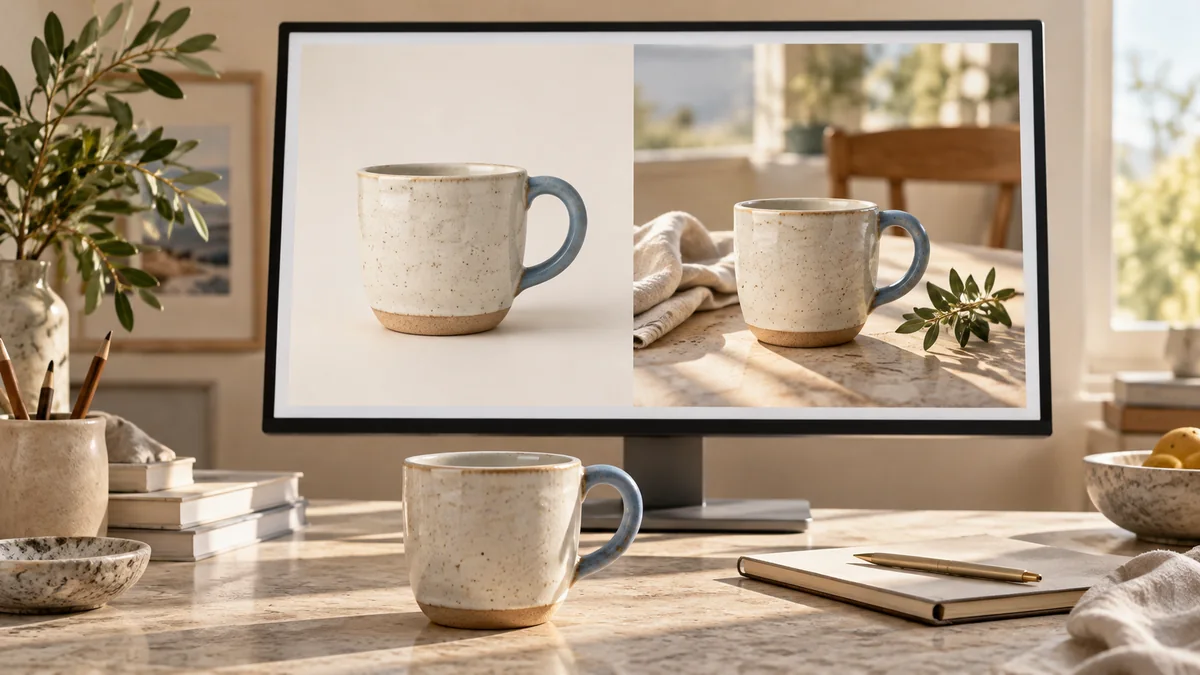
Nano Banana 2.1 is Google’s October update to its image generation and conversational editing model. Its model card is dated October 6, 2026. The practical question is whether you can change a background, keep a product recognizable and get the words right in an image.
This guide explains the verified changes, then gives you three original prompts and a repeatable review method. We have not benchmarked the model. The examples below are instructions to try with your own material, not claims about results we obtained.
At a glance
- Model card
- October 6, 2026
- Developer model ID
- gemini-nano-banana-2.1
- Gemini app access
- Google AI plans unlock 2.1; Nano Banana 2 has a free option
What changed in Nano Banana 2.1?
Google describes improvements in image realism, instruction following, text rendering and consistency across successive edits. The API documentation lists image outputs at 1K, 2K and 4K, with 1K as the default. It also describes combining multiple reference images.
These capabilities do not remove the need for review. Google’s model card lists remaining problems with small text, long passages, character consistency and partial instruction following. Treat an attractive first draft as something to inspect, especially when a label or product shape matters.
Sources: Google AI for Developers: Gemini Nano Banana 2.1 · Google DeepMind: Nano Banana 2.1 model card
Nano Banana 2.1 vs Pro: versions and free access
Google’s consumer image page distinguishes free Nano Banana 2 from Nano Banana 2.1 unlocked through a Google AI plan. Check your account’s current plan, region and model selection before paying. App access and developer API usage are different purchase paths; do not assume one subscription covers both.
Nano Banana 2.1 updates Nano Banana 2. The developer documentation presents it as the efficient counterpart to Nano Banana Pro, rather than another name for Pro. When comparing results, write down the exact model displayed, output size and interface so that you know what you actually tested.
Sources: Google Gemini: image generation and plan access · Google AI for Developers: Gemini Nano Banana 2.1
Product photo prompt: change the setting, preserve the cup
For a real product listing, start with a clear photo of the actual item. A description alone invites the generator to invent its shape. Choose a reference that shows the rim, handle, glaze and base, and keep an unedited copy beside your result.
This exercise changes the setting while keeping the product fixed. Inspect the handle opening, thickness of the rim and glaze marks at full size. If the cup becomes taller or smoother, reject that version even if the background looks more expensive.
Edit my uploaded ceramic cup photo for a product listing. Preserve the cup’s exact silhouette, handle, rim, glaze pattern and color. Place it on a pale stone surface with a plain warm-gray background and soft window light from the left. Keep one cup only, fully visible, in a square composition. Add a natural contact shadow. Do not add a logo, text, steam or accessories. If a detail is not visible in the reference, do not invent a decorative feature.Text in images: a short menu prompt you can check
Give the generator a small amount of final copy instead of asking it to write and design everything together. For this fictional café menu, decide the words first. You can replace them with your own language, but keep a separate text file as the reference.
Check every letter at the final display size, including accents and punctuation. For a real menu, also verify prices and currency yourself. If repeated attempts distort a line, generate the background without lettering and add the approved text in a design editor.
Create a simple square menu graphic for a fictional café. Use a cream background, dark brown lettering and one small hand-drawn cup in a corner. Include exactly these three lines: “Today’s menu”, “Filter coffee”, “Oat latte”. Keep the text large, evenly spaced and centered. Do not add prices, extra words, logos or decorative lettering. Leave generous margins.Consistent image editing: make one change at a time
Once you approve a version, save it before another edit. Give the next request a clear boundary: what may change, and what must stay. For a series of product images, use the same approved reference rather than a chain of increasingly altered copies.
The follow-up below asks only for space around the cup. Compare the original and edited versions side by side, not from memory. When a detail drifts, return to the approved reference and describe that specific mismatch. Repeating “make it better” gives you no useful acceptance criterion.
Use the approved cup image as the reference. Expand the canvas to a horizontal 16:9 composition, keeping the cup on the right and leaving the left half empty for text that I will add later. Preserve the cup’s shape, color, glaze, lighting and apparent size. Continue the existing background naturally. Do not generate text or add objects.A practical checklist before you publish an AI image
Our suggested workflow is to judge accuracy first, then presentation. Give each item below a pass or fail and keep the rejected files long enough to identify recurring mistakes. This is a quality-control method, not a performance ranking of image models.
If you compare two tools, give both the same reference and request. Record the number of revisions and the time spent fixing the result. The useful winner is the one that gets your own job to an acceptable finish with less correction, not necessarily the most dramatic first image.
- Identity: does the object still match the reference, including edges and small marks?
- Text: are every word, number and symbol correct and readable at the intended size?
- Composition: are the crop, empty space and shadow suitable for the destination?
- Delivery: have you saved the approved version and checked the exported file?
Questions, answered
Can Nano Banana 2.1 edit an existing photo?
Yes. Google documents conversational image editing. Upload an image in a supported interface, specify the change and inspect the result against the original.
Does Nano Banana 2.1 guarantee correct text?
No. Google still lists text limitations. Proofread the generated image and use a design editor for exact final lettering when needed.
Can I use Nano Banana 2.1 in GO AI?
We have not confirmed Nano Banana 2.1 availability in GO AI. You can use GO AI chat to prepare a clear image brief, then take it to a compatible image tool.
Sources and editorial note
Reported facts are linked to their sources. Sections marked GO AI analysis contain our interpretation; prompts are suggestions, not recorded test results.