AI news
MAI Image 2.7: AI photo editing, access and better prompts
What Microsoft’s MAI Image 2.7 preview edits, where to try it, and how to write photo-editing prompts that preserve the subject and change only what matters.
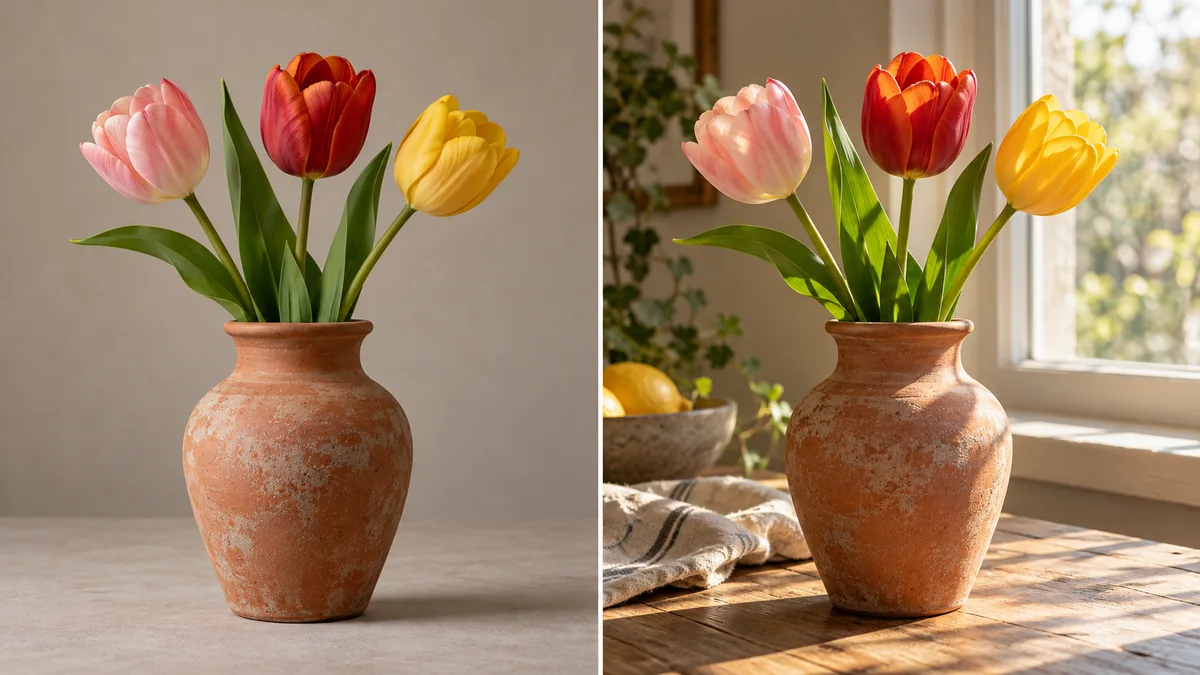
MAI Image 2.7 brings a new reason to revisit AI photo editing: a good edit should change the requested detail while keeping the rest of the image believable. The practical challenge is writing that boundary clearly.
Here is what the preview offers, followed by an original editing brief you can adapt. The cover illustrates the idea; it is not a MAI output or evidence of its performance.
At a glance
- Release
- Microsoft announced MAI Image 2.7 on October 27, 2026.
Sources: Microsoft AI: MAI Image 2.7 preview
- Preview focus
- Editing existing images; text-to-image is described as coming later.
Sources: Microsoft AI: MAI Image 2.7 preview
- Official access routes
- MAI Playground, Arena and Artificial Analysis are linked in the announcement.
Sources: Microsoft AI: MAI Image 2.7 preview
What is new in MAI Image 2.7?
Microsoft highlights scene and lighting changes, text or symbol edits, restoration and enhancement. It reports improvements over version 2.6 across the evaluated editing categories. The announcement points to MAI Playground, Arena and Artificial Analysis for trying the preview. Check the chosen service for current access and limits.
Sources: Microsoft AI: MAI Image 2.7 preview
AI photo editing is different from generating a new picture
In an editing task, the source image is part of the specification. A beautiful new vase is a failed result if the original product had a different shape. Decide which details must survive before you ask for a new background, color treatment or lighting setup.
For a product photo, preserve the outline, material, label and proportions. For a room, preserve the arrangement and dimensions that matter to the brief. If only the background should change, say so explicitly. Avoid mixing a background replacement, a new camera angle and a different object into one first attempt.
Build a photo-editing prompt in four parts
Use four short parts: the subject, the requested change, the details to preserve and the output constraints. Describe visible features rather than vague adjectives such as amazing. Ask for one version first; inspect it before requesting variations.
The example below asks GO AI to write an editing brief. It does not upload a photograph or perform the edit. Copy the resulting prompt into your chosen image editor alongside an image you have permission to use.
Write one concise image-editing prompt for this fictional product photo: a terracotta vase with three tulips on a gray studio background. Change only the background to a sunlit room and adjust the lighting to match. Preserve the vase silhouette, terracotta color, three flowers, camera angle and product proportions. Do not add text or logos. Return the editing prompt, followed by five checks for whether the edit preserved the original subject. Do not claim to have edited an image.Check the edit before you publish it
Compare the input and output side by side at the same scale. Our five checks are subject shape, object count, material and color, camera angle, and plausible lighting. For this example, a fourth flower or a glossy blue vase is a failure even if the picture looks attractive.
Look closely at edges and shadows: a changed background can leave a bright outline or a shadow pointing the wrong way. If the photo contains packaging text, compare each character with the original. Inspect the final crop at the size it will actually appear on a phone.
When something drifts, name that single defect in the next instruction. For example: keep the new background, but restore the original vase shape. Keep the original file so you can restart instead of repeatedly editing a degraded result.
When should you use a simpler editor?
If the task is only a crop, a precise resize or an exact color correction, a conventional editor may give you more predictable control. Consider generative editing when you need a changed setting or a complex visual instruction. Judge the result by fidelity to the brief, not by how dramatic the change looks.
For a fair model comparison, use the same source image, prompt and output size. Keep rejected results as well as the best one. A single successful showcase cannot tell you how many attempts your own project will need.
Questions, answered
Where can I try MAI Image 2.7?
Microsoft’s announcement links to MAI Playground, Arena and Artificial Analysis. Access and service limits can change.
Can this preview generate an image from text alone?
The October 27 announcement starts with image editing and describes text-to-image as coming soon. Do not assume that future feature is already available.
Was this article’s cover made with MAI Image 2.7?
No. It is a separately generated editorial illustration. We do not present it as a model test.
Sources and editorial note
Reported facts are linked to their sources. Sections marked GO AI analysis contain our interpretation; prompts are suggestions, not recorded test results.
- Microsoft AI: MAI Image 2.7 preview — 2026-10-27