How to generate an AI video on iPhone in under a minute
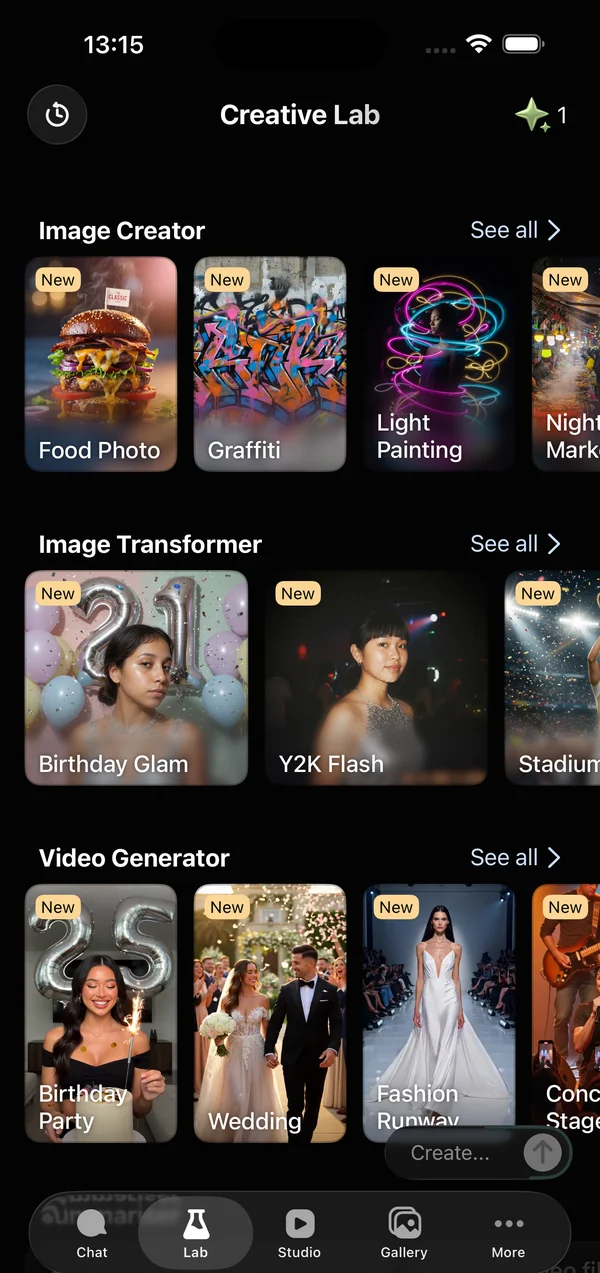
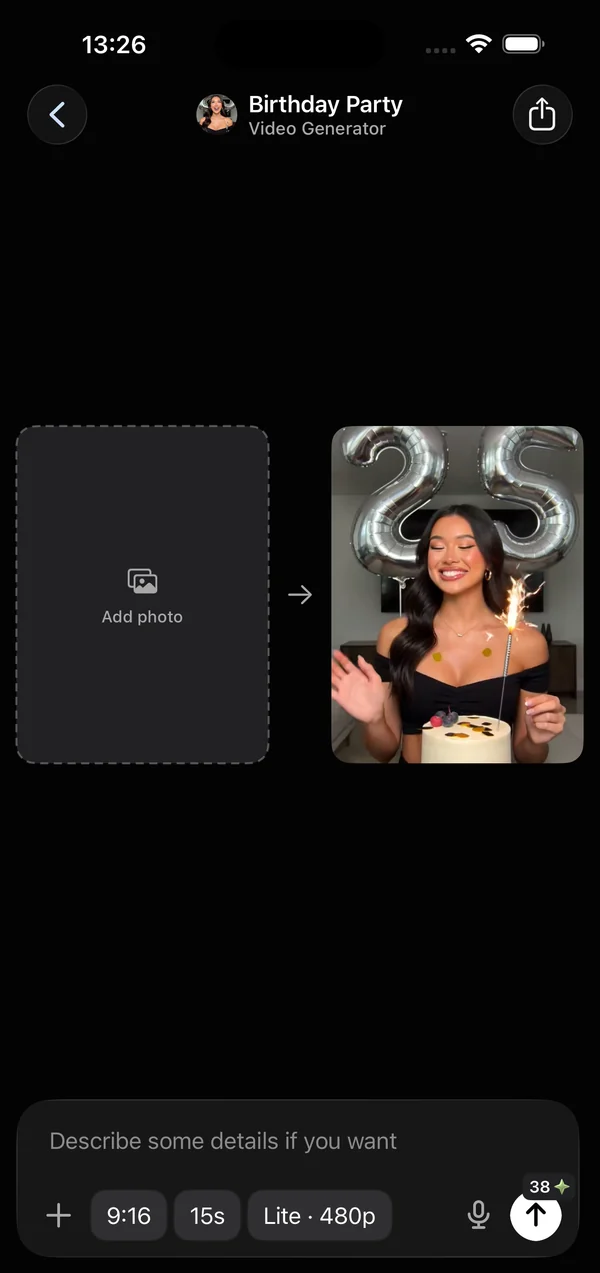
Open GO AI Chat → Lab → describe the scene in one specific sentence (subject + action + camera + style) or pick a photo to animate → generate. About a minute later you have a clip up to 15 seconds, saved to your camera roll. The quality lever is the prompt: one subject, one action, one camera direction.
This is the exact workflow we use for test clips every day, written so your first video comes out decent — not after twenty attempts.
Step 1 — Open Lab and pick video
In GO AI Chat, the Lab tab is where media generation lives (images and video). Choose video generation — it runs on Grok, the same family that powers video on X, and produces clips up to 15 seconds.
Step 2 — Write a prompt with four parts
Every good motion prompt we've written has the same skeleton:
- Subject — one concrete thing. "A golden retriever puppy," not "a cute scene."
- Action — one motion. "Shaking off water in slow motion." Two actions = the model picks one, badly.
- Camera — "static close-up," "slow push-in," "orbit shot," "handheld follow."
- Style — "golden-hour sunlight, shallow depth of field," "16mm film grain," "neon cyberpunk."
Put together: "A golden retriever puppy shaking off water in slow motion, static close-up, golden-hour backlight, shallow depth of field." That sentence reliably beats a paragraph of loose vibes — in our app and in every other generator we've tested.
Rule of thumb: if your prompt has the word "and" twice, cut something.
Step 3 — Or start from a photo
Image-to-video animates a still you provide. It shines when the motion you ask for is plausible for that photo: steam rising from the coffee you photographed, hair moving in wind, a slow camera push toward a landscape. It fails when you ask the photo to become a different scene. Describe the motion, not a new world.
Step 4 — Generate, wait ~a minute, save
Generation takes on the order of a minute. You don't have to stare at it — leave the app, come back, the clip is there. Save to Photos or share directly. If the result is 80% right, regenerate with the same prompt once before rewriting it: there's real variance between runs.
When the result is bad
- Mushy motion → your action was vague. Name a single physical movement.
- Wrong subject emphasis → move the subject to the start of the prompt.
- Chaotic cuts → you implied multiple shots. Add "single continuous shot."
- Warped faces/hands → still a model-level weakness in 2026. Favor medium shots over extreme close-ups of hands; regenerate.
- Text in the video is garbled → don't ask for on-screen text at all; add captions in an editor afterward.
Five prompts to steal
- "Tiny paper boat sailing through a rain puddle, low-angle tracking shot, overcast soft light, macro detail."
- "Neon jellyfish drifting upward in dark water, slow vertical pan, bioluminescent glow, black background."
- "Espresso being poured into a glass cup, static macro shot, warm kitchen light, slow motion."
- "Autumn leaves swirling around a park bench, gentle orbit shot, golden hour, film grain."
- "Astronaut dancing on a desert dune at dusk, handheld follow shot, purple sky, lens flare."
For trend formats — dance videos especially — the same skeleton applies; we're covering that pattern separately. And if you're deciding which app to do this in at all, our honest comparison (our own app included) is in the best AI video generator apps for iPhone.
FAQ
How long does an AI video take to generate on iPhone?
Typically around a minute per clip in GO AI Chat, depending on load. You can leave the app; generation continues and the clip is waiting when you return.
Can I turn an existing photo into a video?
Yes — image-to-video animates a still photo. It works best when you describe one plausible motion for the scene rather than asking the photo to become a different scene.
How long can the video be?
Up to 15 seconds per clip in GO AI Chat (video runs on Grok). For longer pieces, generate multiple clips and join them in any editor.
Is AI video generation free in GO AI Chat?
The app is free to download with a free usage tier; video generation is metered because it's computationally expensive. Subscriptions unlock heavier use.